
How can we help?
How do I change my Wi-Fi name and password?
The default Wi-Fi name and password for a PacketSky Cudy router are normally shown on the label underneath the router.
You can change these details through the router’s management page.
Before changing anything: Make a note of the new Wi-Fi name and password. Once the changes are applied, every wireless device will disconnect and must be reconnected.
Step 1: Connect to the router
Connect a computer, phone or tablet to the router using:
- The existing Wi-Fi connection, or
- An Ethernet cable
An Ethernet connection is preferable because it will remain connected when the Wi-Fi settings change.
Step 2: Open the Cudy management page
Open a web browser and enter:
If the page does not open:
- Confirm that your device is connected to the Cudy router
- Switch off mobile data temporarily
- Try another browser
- Use the management address shown on the router label or manual
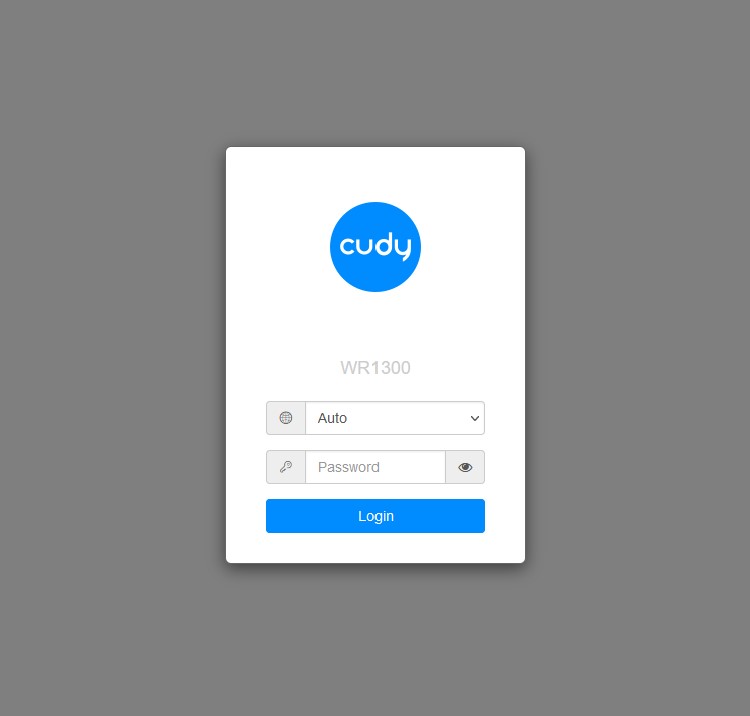
Step 3: Log in
Enter the router-management password.
This may be:
- Printed on the router label
- A password created during the original setup
- A password supplied by PacketSky
The router-management password is not necessarily the same as the Wi-Fi password.
If you cannot log in, contact PacketSky before resetting the router.
Do not factory-reset the router simply because you have forgotten the management password. A reset may remove the internet configuration.
Step 4: Open the wireless settings
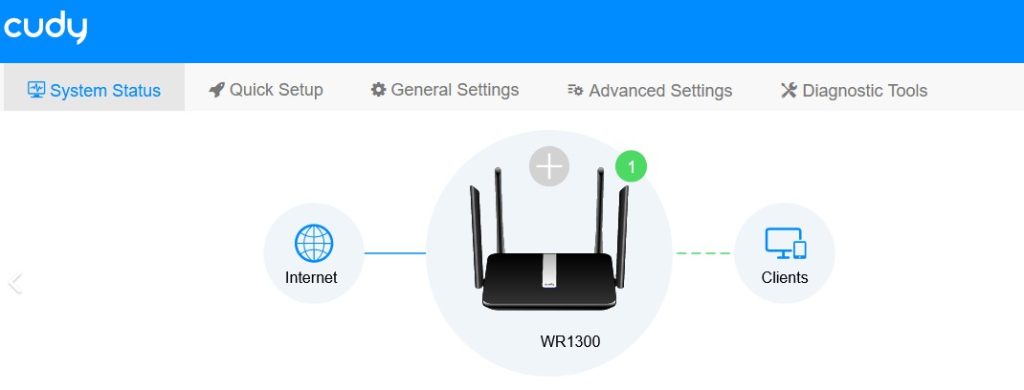
The exact menu names depend on the Cudy model and firmware.
Look for an option such as:
- General Settings
- Wireless
- Wi-Fi
- Wireless Settings
On many Cudy routers, select General Settings and then Wireless.
Step 5: Change the Wi-Fi name
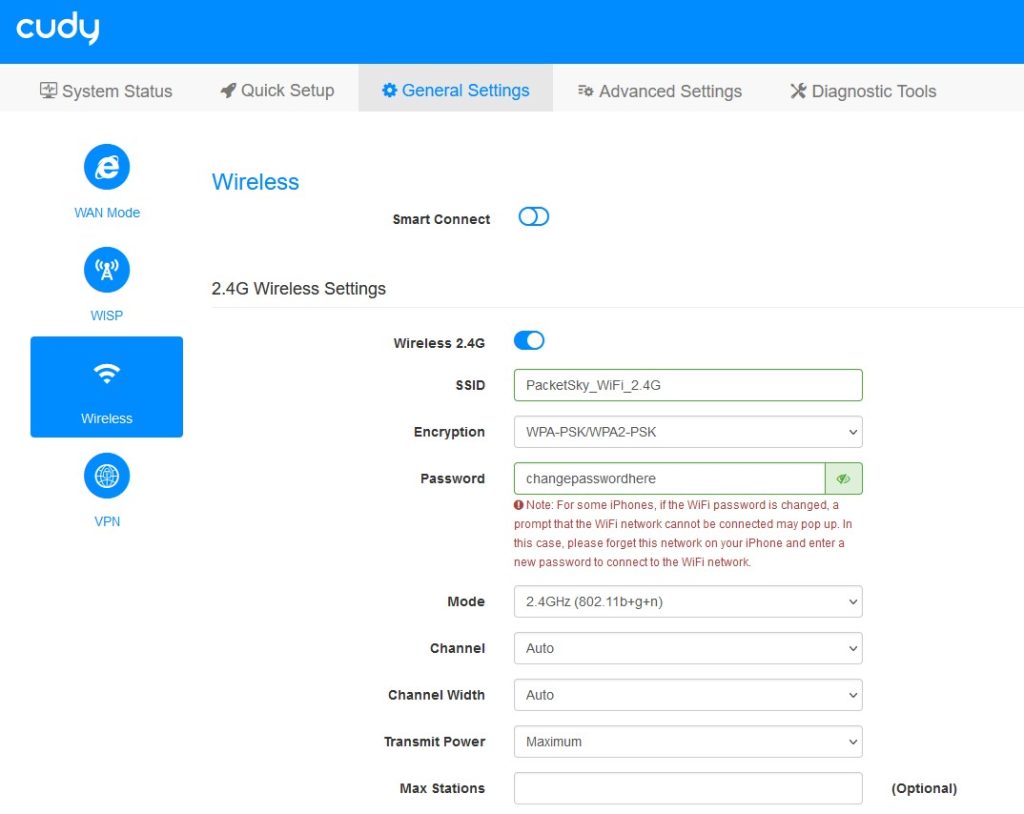
The Wi-Fi name may be labelled:
- SSID
- Network Name
- Wi-Fi Name
Enter the name you want devices to see.
Avoid using personal information such as:
- Your surname
- Street address
- Phone number
- Unit number
- Company password
If the router shows separate 2.4 GHz and 5 GHz settings, you can either:
- Give both bands the same name, or
- Use different names so that you can choose between them manually
Step 6: Change the Wi-Fi password
Enter a strong new password.
A good password should:
- Be at least 12 characters where possible
- Include a mixture of letters and numbers
- Be difficult for other people to guess
- Not contain your address or phone number
- Not reuse an important banking or email password
Use WPA2, WPA3 or the router’s recommended secure mode. Do not select an open or unsecured network.
Step 7: Save the changes
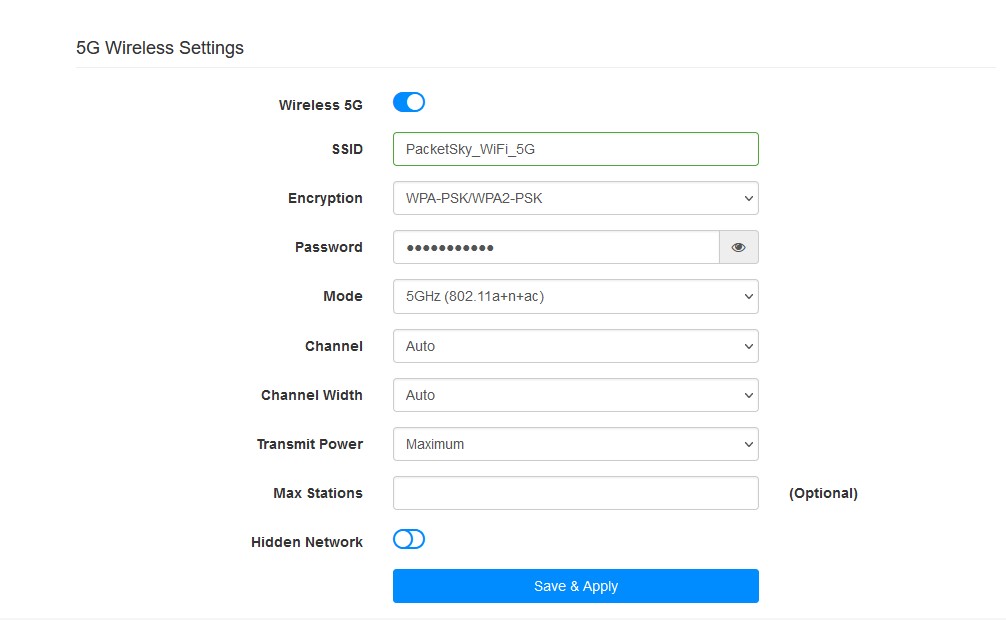
Scroll to the bottom of the page and select:
- Save
- Apply
- Save & Apply
The router may take a short time to apply the changes.
Your wireless device will disconnect because the previous Wi-Fi name or password no longer exists.
Step 8: Reconnect your devices
Open the Wi-Fi settings on each device and connect using the new details.
You may need to remove or forget the old network before reconnecting.
Devices that commonly need updating include:
- Phones
- Tablets
- Laptops
- Smart televisions
- Streaming devices
- Printers
- Security cameras
- Smart-home devices
- Gaming consoles
What if the router has only one Wi-Fi name?
Some routers combine 2.4 GHz and 5 GHz under one Wi-Fi name using band steering.
In that case, change the single Wi-Fi name and password shown in the main wireless settings.
The router will decide which frequency each device uses.
What if I cannot reconnect?
Check that:
- The password has been entered exactly
- Capital letters are correct
- The device is connecting to the new network name
- The router has completed applying the changes
- The old network has been forgotten
- The device supports the selected security mode
Restart the affected device if necessary.
Need help?
Log a support ticket through the PacketSky Customer Portal.
Include:
- The router make and model
- A photograph of the router label
- The step where you became stuck
- A screenshot of any error message