
How can we help?
How do I generate a PacketSky account statement?
You can generate an account statement at any time through the PacketSky Customer Portal.
A statement provides a summary of the financial activity on your account over a selected period. This can include invoices, payments, credit notes and your opening and closing balances.
Sign in to the Portal at:
Open the statement tool
After signing in:
- Select Finance from the menu on the left.
- Select Documents.
- Select Generate statement in the top-right corner.
The statement window will open over the Documents page.
Choose the statement period
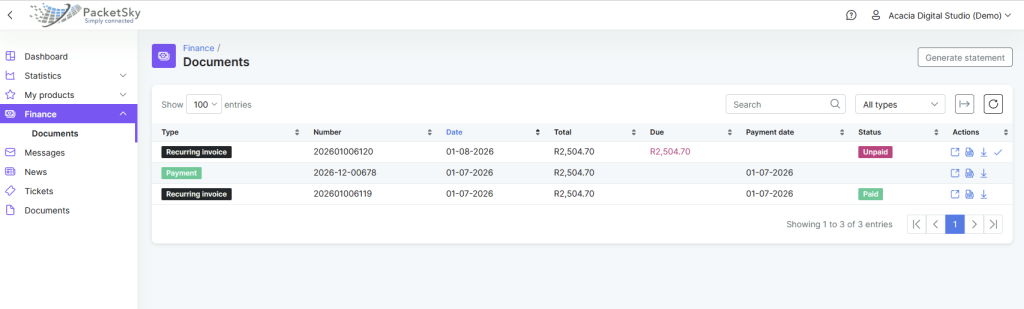
Use the date field near the top of the statement window to select the period you want to review.
You can generate a statement for:
- A particular month
- Several months
- A financial reporting period
- Any custom date range available in the Portal
After choosing the dates, select the type of information you want to display.
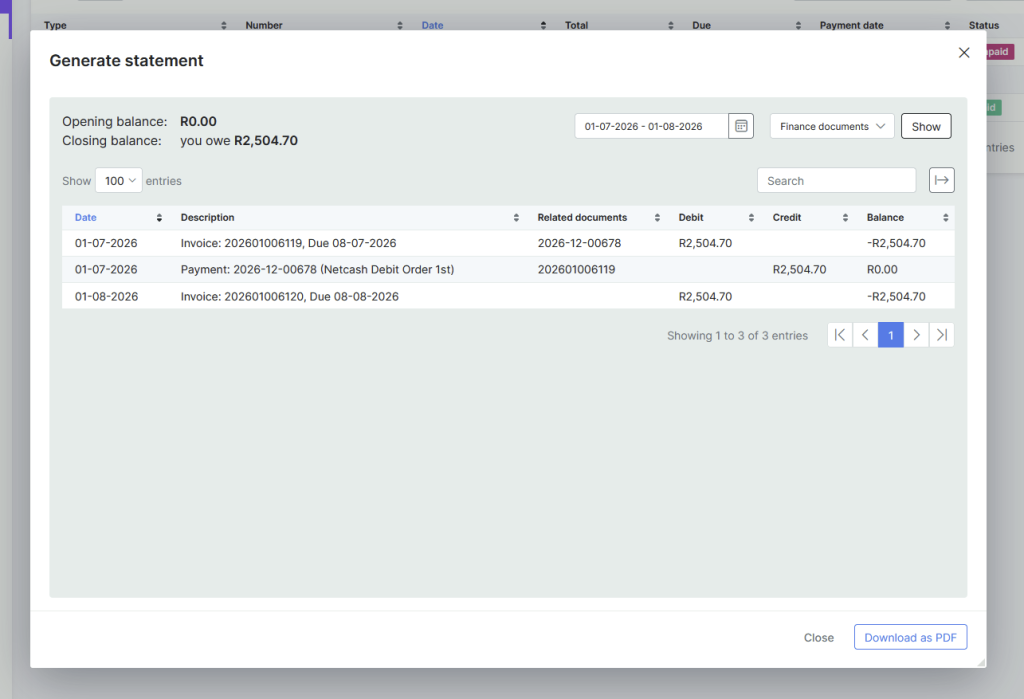
Choose the statement period, select the information to display and then select Show.
Finance documents view
Select Finance documents to view the invoices and payments recorded during the selected period.
The statement may show:
- Invoice dates
- Invoice numbers
- Payment records
- Related documents
- Debit amounts
- Credit amounts
- Running account balance
At the top of the statement, the Portal displays:
- Opening balance: The account balance at the beginning of the selected period
- Closing balance: The account balance at the end of the selected period
Where the closing balance says that you owe an amount, this represents the outstanding balance at the end of the selected period.
The Finance documents view shows invoices, payments, related documents and the running account balance.
Transactions view
You can also select Transactions from the dropdown menu.
The Transactions view provides a more detailed breakdown of each individual charge and payment.
This may include:
- Monthly service charges
- Discounts
- Once-off charges
- Payments
- Credits
- Debit and credit amounts
- The balance after each transaction
This view can be particularly useful for business customers with several services on one PacketSky account.
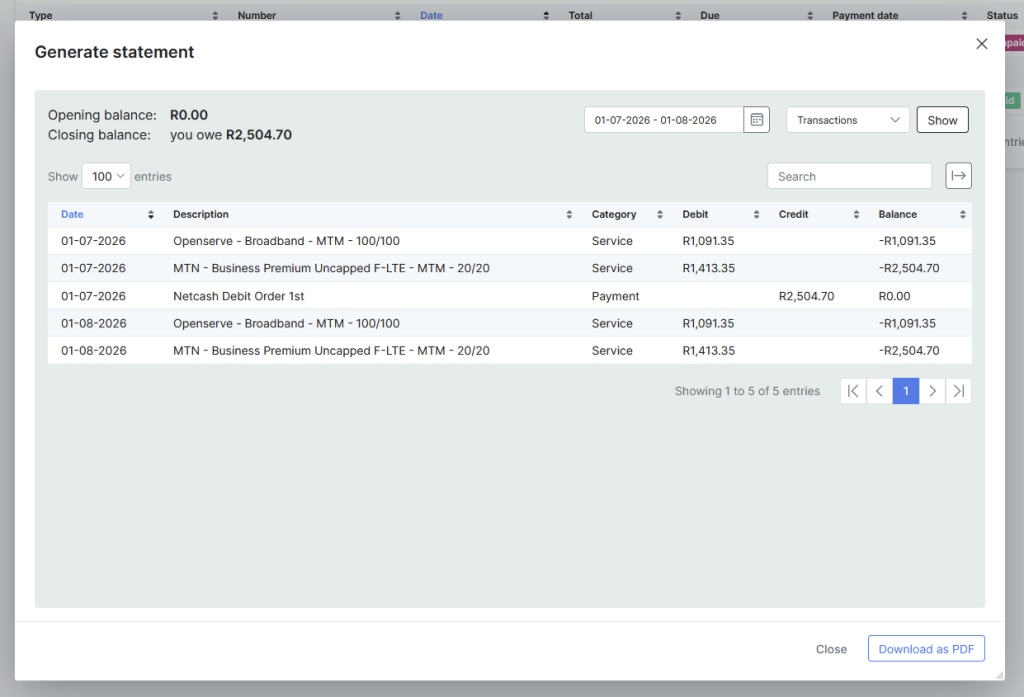
The Transactions view provides a detailed breakdown of the individual services, charges and payments on the account.
Download the statement as a PDF
Once the correct information is displayed:
- Check that the selected date range is correct.
- Check whether you are viewing Finance documents or Transactions.
- Select Download as PDF at the bottom-right of the window.
- Save the PDF to your computer or device.
On a mobile device, the statement may first open in your browser. Use the browser’s Download, Save or Share option to keep a copy.
What is the difference between an invoice and a statement?
An invoice records charges for a particular billing period or transaction.
A statement provides a summary of financial activity across a selected period and may include:
- Multiple invoices
- Payments
- Credit notes
- Opening and closing balances
Use an invoice when you need the tax invoice for a specific charge.
Use a statement when you need an account history or want to reconcile several invoices and payments.
Why does my statement show a negative balance?
The Portal uses accounting-style debit and credit entries when calculating the running balance.
A negative balance in the transaction table may indicate that charges have been raised against the account. The wording shown beside the closing balance is usually the clearest indication of whether an amount remains payable.
For example:
Closing balance: you owe R2,504.70
This means that R2,504.70 remains outstanding at the end of the selected period.
Why does a payment appear separately from the invoice?
An invoice records the amount charged to your PacketSky account.
A payment is a separate transaction showing money received and allocated to the account.
It is therefore normal for the statement to show:
- An invoice as a debit
- A payment as a credit
Once the payment has been allocated correctly, the balance should reduce accordingly.
The statement does not show the information I expected
Check the following:
- The selected date range includes the relevant invoice or payment date
- You selected Show after changing the dates
- You are viewing the correct option, either Finance documents or Transactions
- Your search box is empty
- You are signed into the correct PacketSky account
Payments may also take a short time to appear where they still need to be allocated to your account.
I need help understanding my statement
Create a Finance Query support ticket through the PacketSky Customer Portal and include:
- The statement period
- The invoice or payment number concerned
- The amount you are querying
- A short explanation of your question