
How can we help?
How do I log a support ticket in the PacketSky Customer Portal?
The PacketSky Customer Portal is the best place to log and track support requests.
Using a ticket keeps the full conversation, updates and attachments together. It also allows the correct PacketSky team to investigate your request and respond through one central channel.
Sign in to the Customer Portal at:
Open the Tickets section
After signing in:
- Select Tickets from the menu on the left.
- Select Create ticket near the top-right of the page.
- The ticket form will open on the right-hand side of the screen.
You can use this form for technical faults, billing questions, service changes, cancellations and general queries.

Open Tickets and select Create ticket to start a new support request.
Add a clear subject
Enter a short subject that explains what you need help with.
Good examples include:
- Fibre service offline at 12 Main Road
- Slow speeds on 100 Mbps service
- Query regarding invoice 202601001234
- Request to upgrade service
- Moving service to a new address
- Debit order returned unpaid
Avoid vague subjects such as:
- Help
- Internet
- Problem
- Urgent
- Not working
A clear subject helps the support team understand and route the request before opening the full ticket.
Choose the correct priority
The Portal allows you to select a ticket priority.
Use the lowest suitable priority unless the issue is genuinely urgent.
Low
Suitable for:
- General questions
- Billing queries that are not urgent
- Requests for information
- Future service changes
- Non-critical administrative matters
Normal or medium
Suitable for:
- A service problem affecting normal use
- Intermittent connectivity
- Slow speeds
- A request that requires attention during normal support hours
High
Suitable for:
- A business-critical service is completely unavailable
- Multiple users or an entire site are affected
- There is a serious operational impact
Choosing a high priority does not bypass troubleshooting or Fibre Network Operator response times. Incorrectly marking routine requests as urgent may make it harder for the team to identify genuinely critical incidents.
Choose the correct ticket type
Select the category that most closely matches your request.
The available ticket types may include:
General Query
Use this for questions that do not fit another category.
Examples:
- Questions about your account
- Requesting general service information
- Clarifying a process or policy
Technical Issue
Use this for problems with your internet service or connectivity.
Examples:
- The service is offline
- Speeds are slower than expected
- The connection disconnects intermittently
- The router or fibre device is showing unusual lights
- A particular website or online service is not working correctly
Finance Query
Use this for billing, invoices and payment matters.
Examples:
- An invoice amount appears incorrect
- A payment is not reflecting
- A debit order was returned unpaid
- You need assistance understanding a statement
- You are querying a credit note or account balance
Upgrade/Downgrade
Use this when requesting a change to your package or service speed.
Include:
- The service or address concerned
- Your current package
- The package or speed you would like
- The preferred effective date
Cancellation
Use this when requesting cancellation of a service.
Include:
- The service or address to be cancelled
- The requested cancellation date
- The reason for cancellation
- Any information requested under PacketSky’s cancellation terms
Submitting a cancellation ticket does not remove the applicable notice period.
Service Change
Use this for changes that do not fall under a normal upgrade or downgrade.
Examples:
- Moving premises
- Changing service details
- Requesting an amendment to an existing service
- Replacing or changing supplied equipment
Other Query
Use this only where none of the available ticket types accurately match your request.
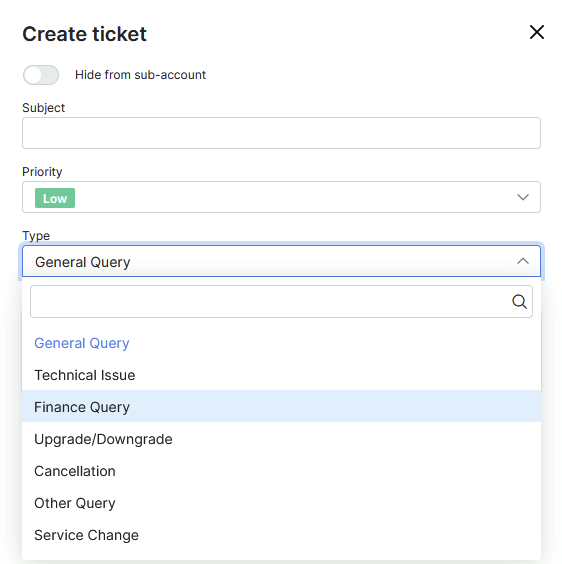
Choose the ticket type that most closely matches your request so it reaches the correct team.
Describe the issue clearly
In the message section, explain what happened and what assistance you need.
For a useful support ticket, include:
- The service address or site name
- The service affected
- When the issue started
- Whether the problem is constant or intermittent
- Which devices are affected
- Any troubleshooting already completed
- Any error messages or warning lights
- A contact person and number where relevant
For business customers with several services, always identify the exact branch, circuit or service affected.
What should I include for a service that is offline?
Before logging the ticket, complete the basic checks in our guide:
My service is down, what do I do?
Include the following in your ticket:
- Confirmation that the router and fibre device have power
- Confirmation that both devices were restarted
- The lights visible on the fibre device
- Whether the issue affects every connected device
- A photograph of the fibre device lights where possible
- The time the service stopped working
This information helps PacketSky determine whether the problem is related to the router, local equipment or the Fibre Network Operator’s network.
What should I include for slow internet speeds?
For a speed-related ticket, include:
- Your package speed
- The speed test result
- Whether the test used Wi-Fi or an Ethernet cable
- The device used for testing
- The date and time of the test
- Whether other devices were using the connection
- A screenshot of the result
- Whether the issue affects local websites, international websites or both
For the most reliable result, perform a cabled test where possible.
Add screenshots or supporting files
Select Add attachments to include files with the ticket.
Useful attachments include:
- Photographs of router or fibre-device lights
- Speed-test results
- Traceroute results
- Screenshots of error messages
- Proof of payment
- Relevant invoices
- Photographs showing damaged cables or equipment
Submit the ticket
Before submitting, check that:
- The subject clearly explains the request
- The correct priority is selected
- The correct ticket type is selected
- The affected service or address is identified
- All relevant troubleshooting information is included
- Useful screenshots or documents are attached
Submit or save the ticket using the button at the bottom of the form.
Once created, the ticket will appear in your ticket list and receive a unique ticket number.
How do I view an existing ticket?
Open Tickets from the menu on the left.
The ticket list shows information such as:
- Ticket number
- Subject
- Status
- Ticket type
- Creation date
- Last updated date
Select the ticket subject or action icon to open the conversation.
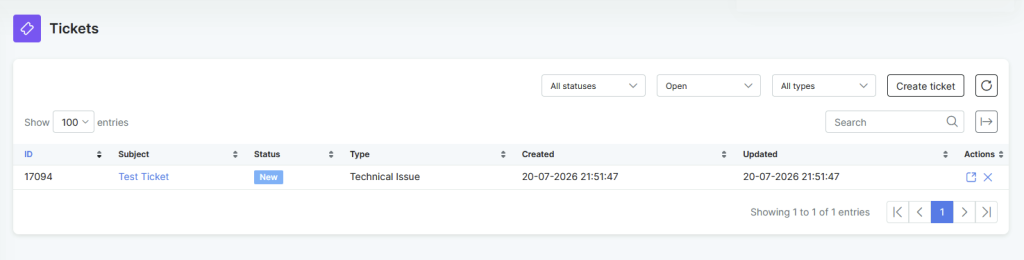
Existing tickets and their current statuses can be viewed from the Tickets page.
How do I reply to or update a ticket?
Open the relevant ticket and enter your response in the Add message section.
You can use this to:
- Answer a question from the support team
- Provide test results
- Add an attachment
- Confirm whether the service has recovered
- Request an update
- Provide additional contact details
Keep all updates relating to the same issue on the existing ticket rather than creating a new ticket.
This gives the support team the full history and avoids duplicate investigations.

Open an existing ticket to add information, upload further evidence or respond to the support team.
What do the ticket statuses mean?
The wording may differ depending on the request, but common statuses include:
New
The ticket has been created and is waiting to be reviewed.
Open
The ticket is being investigated or requires further action.
Pending
PacketSky may be waiting for:
- Information from you
- Feedback from a supplier
- An update from the Fibre Network Operator
- A scheduled appointment or service action
Resolved
The reported issue has been addressed or a response has been provided.
Closed
The ticket has been completed and closed.
Where the issue continues after a ticket is marked resolved, reply to the existing ticket where possible and explain that the problem remains.
How quickly will PacketSky respond?
Response and resolution times depend on:
- The type of request
- The priority
- The information supplied
- Whether further troubleshooting is required
- Whether the issue must be escalated to a Fibre Network Operator or supplier
- The relevant support hours and service-level commitments
Providing complete information when creating the ticket helps avoid unnecessary delays.
Should I create more than one ticket for the same problem?
No.
Creating duplicate tickets for the same issue may split information between different conversations and slow down the investigation.
Use the original ticket to:
- Add new information
- Request an update
- Attach further results
- Confirm that the issue has changed
Create a new ticket only for a separate issue or service.
Can I log a ticket by email or telephone instead?
PacketSky may also assist through its available support channels, but the Customer Portal is recommended because it:
- Records the full history
- Allows attachments
- Shows the ticket status
- Keeps replies together
- Makes it easier to identify the affected account and service
For a service fault, the Portal should be used whenever possible.