
How can we help?
How do I view and download my PacketSky invoices?
Your PacketSky invoices, payments and credit notes are available through the PacketSky Customer Portal.
You can view invoice details online, open a full PDF tax invoice or download a copy for your records.
Sign in to the Portal at:
Open your financial documents
After signing in:
- Select Finance from the menu on the left.
- Select Documents.
- Your available financial documents will be displayed in a table.
The Documents page may include:
- Recurring invoices
- One-time invoices
- Payments
- Credit notes

Open Finance → Documents to view your PacketSky invoices, payments and credit notes.
Understanding the Documents page
Each financial document appears on its own row.
The information shown may include:
- Type: Whether the document is an invoice, payment or credit note
- Number: The unique document or invoice number
- Date: The date on which the document was created
- Total: The total value of the document
- Due: The outstanding amount
- Payment date: The date on which payment was recorded
- Status: Whether the invoice is unpaid, paid, overdue or closed
- Actions: Options to view or download the document
An unpaid invoice will normally show an amount in the Due column. Once the payment has been allocated, the invoice status should update to Paid.
View the invoice details
To view a summary of an invoice, select the View invoice icon under the Actions column.
The invoice preview shows:
- The invoice number
- The document date
- The payment due date
- The services charged
- The quantity and unit price
- The VAT charged
- The invoice total
- The amount still due
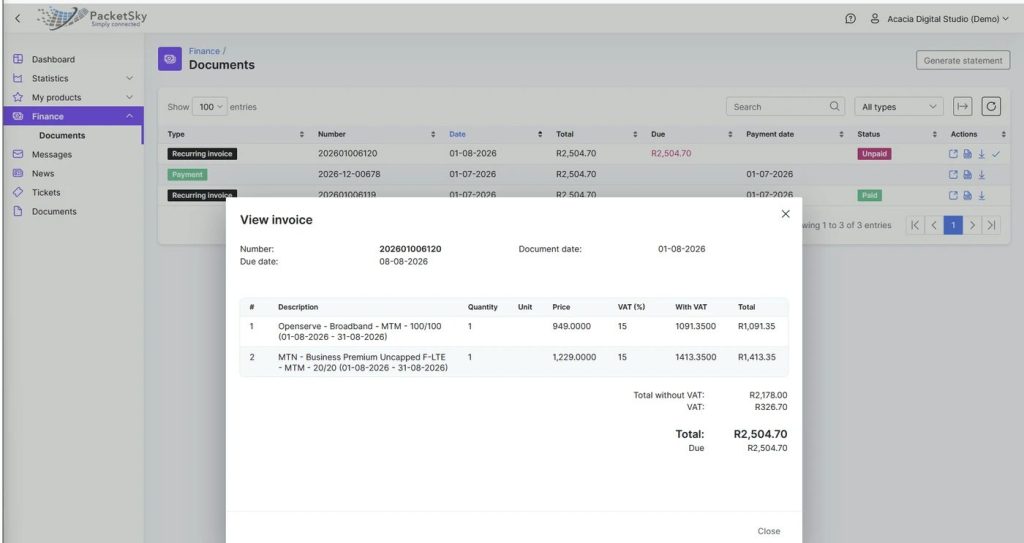
The invoice preview shows the services billed, VAT calculation, total invoice value and amount due.
The preview is useful when you only need to confirm what was charged without downloading the full document.
Open the PDF tax invoice
Select the PDF invoice icon under Actions to open the complete tax invoice in your browser.
The PDF includes:
- PacketSky’s company and VAT details
- Your account or company details
- The invoice number
- Invoice and due dates
- Payment method
- Service descriptions
- Billing periods
- Subtotals
- VAT
- Total amount payable
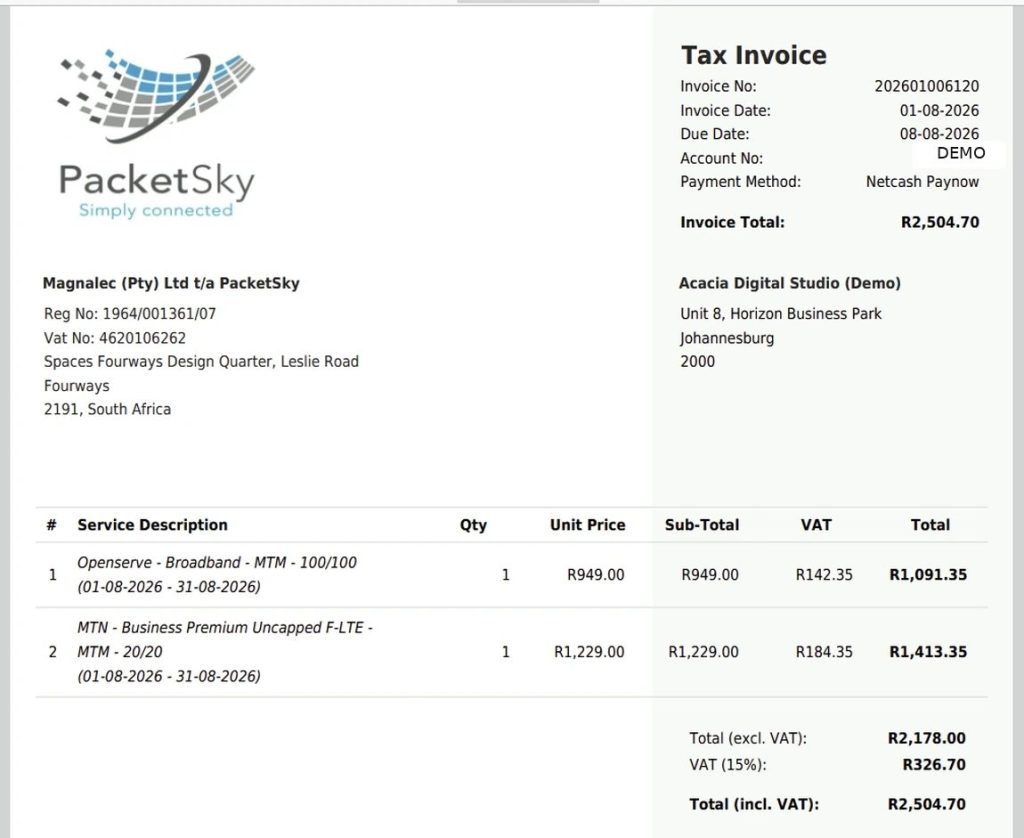
A PacketSky PDF tax invoice includes the service charges, billing period, VAT and total amount payable.
Download an invoice
To save an invoice to your computer or device:
- Find the required invoice.
- Select the Download icon under Actions.
- Choose where to save the file if your browser asks.
- Open the downloaded PDF from your Downloads folder.
On a mobile device, the invoice may open in your browser first. Use the browser’s Share, Save or Download option to keep a copy.
The exact wording may differ depending on your browser or device.
Find a specific invoice
Use the Search box near the top of the Documents page to find a particular invoice or document.
You can search using information such as:
- The invoice number
- The document number
- A date
- An amount
You can also use the All types filter to show only a particular type of document, such as invoices or payments.
Where your account contains many documents, use the page controls at the bottom of the table to view older records.
What do the invoice statuses mean?
Common statuses include:
Unpaid
The invoice has been issued and payment has not yet been fully allocated.
Paid
Payment has been received and allocated against the invoice.
Overdue
The invoice remains unpaid after its due date.
Closed
The document has been completed, settled or otherwise closed in the billing system.
A payment may take a short time to reflect, particularly where the payment still needs to be matched to your PacketSky account.
Why can I see both an invoice and a payment?
An invoice records the amount charged to your account.
A payment is a separate financial record showing money received and allocated to the account.
It is therefore normal to see both:
- A recurring invoice for the monthly service charge
- A payment for the same amount
The invoice should show as Paid once the payment has been correctly allocated.
Invoice preview versus PDF invoice
The invoice preview provides a quick online summary of the charges.
The PDF invoice is the complete tax invoice and is the best version to download for:
- Accounting records
- VAT records
- Company expense claims
- Bookkeeping
- Audit documentation
Invoice versus statement
An invoice shows the charges for a particular billing period.
A statement provides an account history over a selected period and may include:
- Invoices
- Payments
- Credit notes
- Opening balance
- Closing balance
Statements can be generated using the Generate statement button on the Finance page.
A separate guide explaining how to generate a PacketSky statement will be added to the Help Centre.
I cannot find an invoice
Check the following:
- You are signed into the correct PacketSky account
- You have opened Finance → Documents
- The All types filter is selected
- Your search box is clear
- You have checked the older pages of the document list
- The invoice has already been issued
PacketSky recurring invoices are normally issued according to your account’s billing cycle.
The invoice details appear incorrect
Create a Finance Query support ticket through the Customer Portal and include:
- The invoice number
- The item or amount you are querying
- A short explanation of the concern
- Any supporting documentation