
How can we help?
How do I log in to the PacketSky Customer Portal?
The PacketSky Customer Portal gives you secure access to your account, services, invoices, payments, internet usage, messages and support tickets.
You can access the Portal at:
How to sign in
- Open the PacketSky Customer Portal.
- Enter the Portal login supplied by PacketSky in your welcome email.
- Enter your Portal password.
- Select Sign in.
Your Portal login is not necessarily the same as your Wi-Fi name, Wi-Fi password or internet service username.
Security reminder: Never share your Portal password with anyone. PacketSky Support will not ask you to send your full password by email, WhatsApp or through a support ticket.
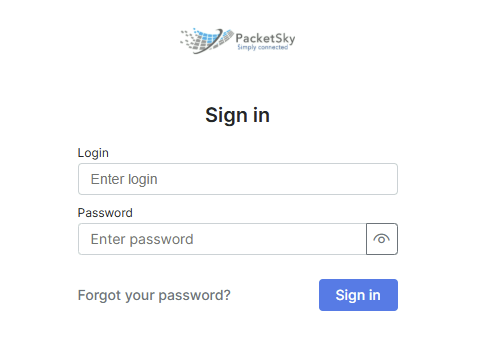
Enter your PacketSky Portal login and password, then select Sign in.
I have forgotten my password
If you cannot remember your Portal password:
- Open the PacketSky Customer Portal login page.
- Select Forgot your password?
- Enter either your email address or Portal login.
- Enter the characters shown in the CAPTCHA image.
- Select Send reset link.
- Check your email for the password-reset message.
- Open the reset link and follow the instructions to create a new password.
The CAPTCHA characters are case-sensitive. If the code is difficult to read, select New code to generate another one.
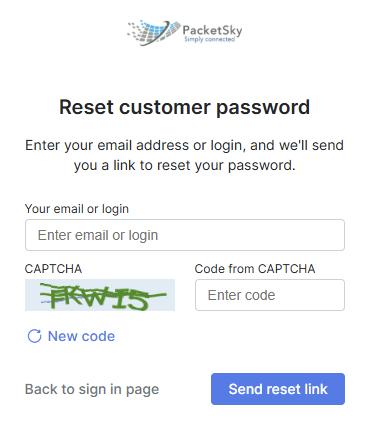
Enter your email address or Portal login, complete the CAPTCHA and select Send reset link.
I have not received the password-reset email
Allow a few minutes for the message to arrive.
Then check:
- Your spam or junk folder
- That you entered the correct email address or Portal login
- Whether your mailbox is full
- Whether your organisation filters automated emails
- Whether the email address registered with PacketSky is still current
Search your mailbox for messages from PacketSky if you are unsure where the reset email was delivered.
Do not repeatedly request reset links within a short period. Use the most recent reset email, as an older link may no longer be valid.
The reset link does not work
If the link has expired or has already been used:
- Return to the Portal login page.
- Select Forgot your password?
- Request a new reset link.
- Open the most recent email received.
Make sure the complete link opens in your browser. Corporate email-security systems may occasionally modify or scan links before you receive them.
My login details are not being accepted
Check that:
- Caps Lock is off
- There are no spaces before or after the login
- The password has been entered exactly
- You are using the Portal password, not the Wi-Fi password
- Your browser has not automatically inserted an old password
- You are signing in at the official PacketSky Portal address
Try entering the login and password manually rather than relying on a saved browser password.
You may also try:
- Refreshing the page
- Opening the Portal in a private or incognito window
- Using another browser
- Temporarily disabling a browser extension that may be interfering with the page
I no longer have access to my registered email address
If the reset message is being sent to an email address you can no longer access, contact PacketSky Support.
For security, we may need to verify the account holder before changing the registered email address or restoring Portal access.
Still unable to sign in?
Contact PacketSky Support and provide:
- Your full name or company name
- Your PacketSky account or service address
- The Portal login you are attempting to use, if known
- A screenshot of the error message
- Confirmation that you attempted the password-reset process
Do not include your password in the message or screenshot.