
How can we help?
How do I pay my PacketSky account online?
You can pay an outstanding PacketSky account balance securely through the PacketSky Customer Portal. PacketSky’s standard monthly payment method is debit order, while the online payment option is available for manual or additional payments.
The payment process is handled by Netcash and supports several payment methods, including card payments and Instant EFT.
Sign in to the Customer Portal at:
PacketSky’s standard monthly payment method is debit order.
Your monthly service fee is normally collected automatically on your agreed debit order date. You do not need to make a separate online payment each month where the debit order is processed successfully.
The online payment option is mainly useful when:
- A debit order was returned unpaid
- An amount remains outstanding
- You need to settle the account before the next debit order run
- PacketSky has asked you to make a manual payment
- You want to pay an additional amount towards the account
Making an online payment does not automatically cancel or replace your debit order arrangement. Future monthly charges may still be collected by debit order unless PacketSky confirms otherwise.
Will my debit order still run after I make an online payment?
Possibly.
An online payment does not automatically stop a scheduled debit order. Where a debit order has already been submitted for processing, making a manual payment shortly before the collection date may result in both payments being processed.
Where you are unsure whether the debit order is still due to run, create a Finance Query ticket before making the manual payment.
Check your outstanding balance
After signing in, the Dashboard displays your current account balance and any unpaid invoices.
The Account balance section shows:
- The total amount due
- The payment due date
- Whether the amount is already overdue
- A Pay by Netcash button
You can also see individual unpaid invoices in the Unpaid invoices section below.
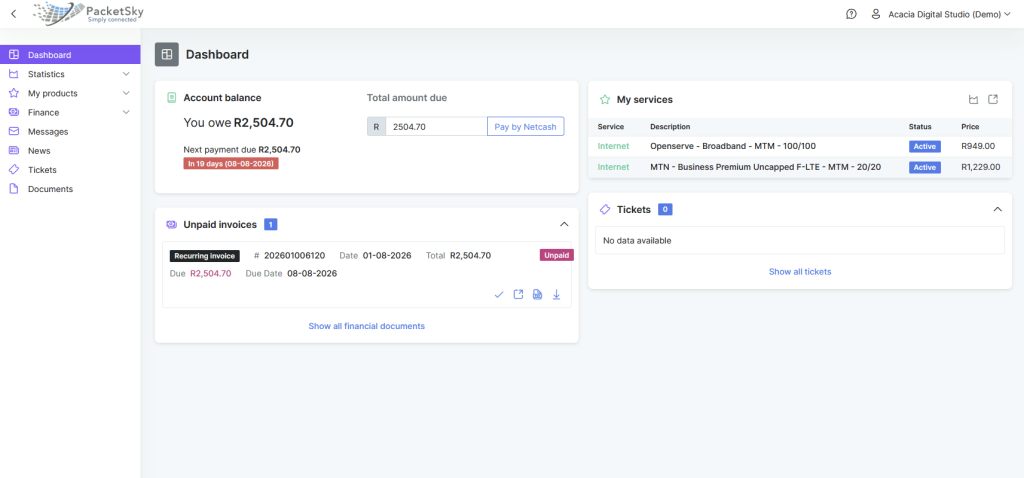
Your outstanding balance and the Pay by Netcash button are displayed on the Customer Portal Dashboard.
Start the online payment
Select Pay by Netcash next to the total amount due.
The Portal will open a payment page showing the amount that will be paid.
Check that the amount is correct before continuing.
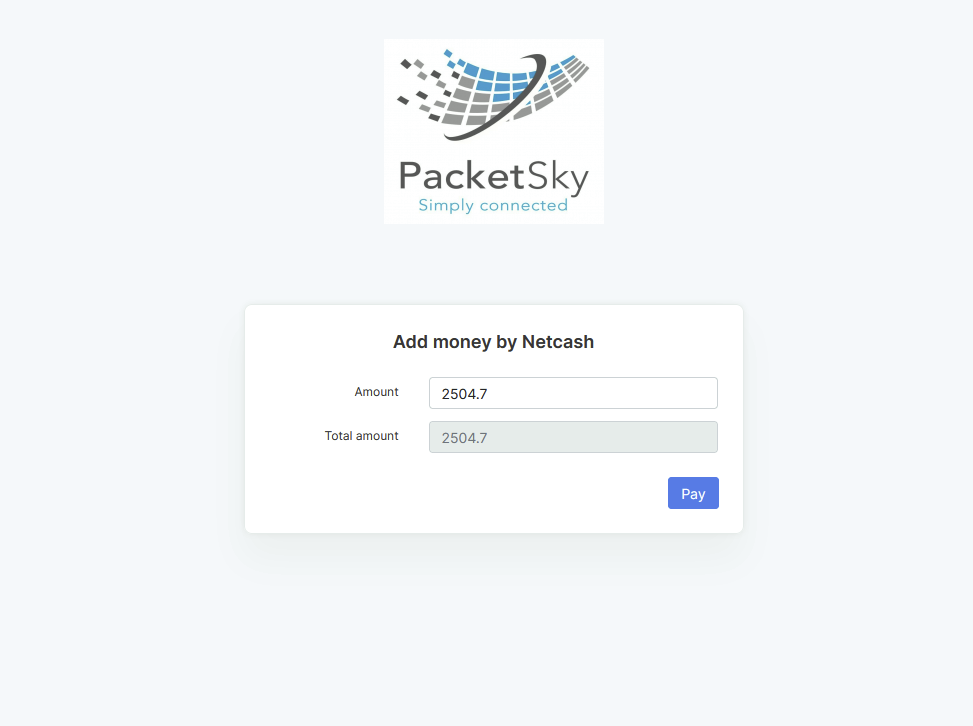
Check the payment amount before selecting Pay.
The amount field may already contain the full outstanding balance.
Where the field can be edited, you may be able to enter a different amount. Paying less than the total balance will leave the remaining amount outstanding on your account.
Select Pay to continue to the Netcash payment page.
Choose your payment method
Netcash will display the payment options currently available.
These may include:
- Credit or debit card
- Instant EFT
The available methods may change from time to time.
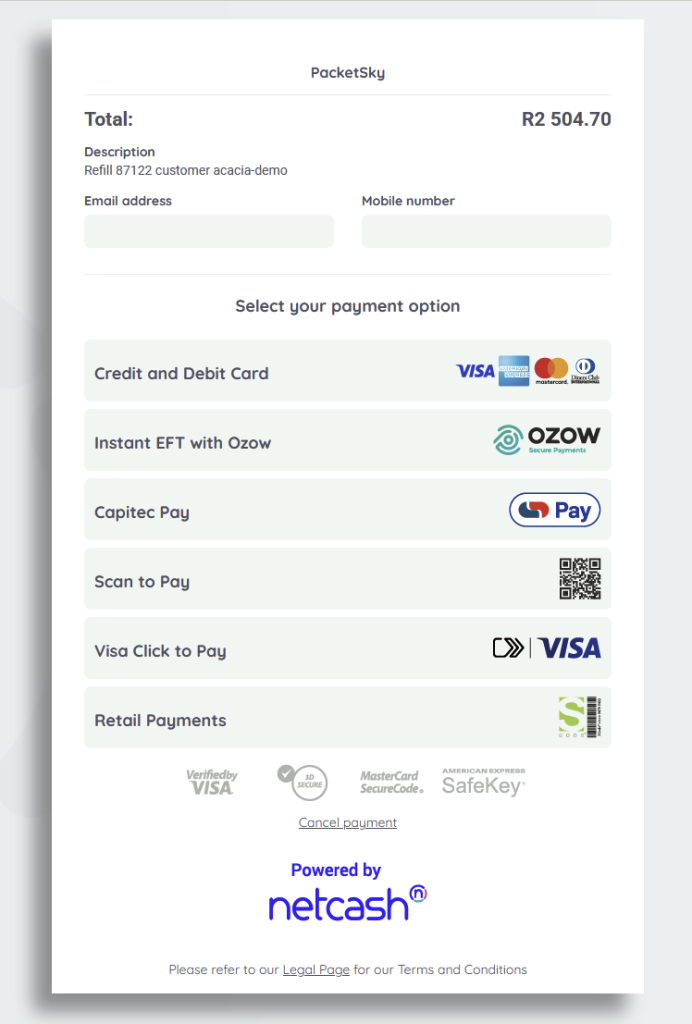
Select your preferred secure payment method on the Netcash payment page.
Choose the method you prefer and follow the instructions displayed by Netcash or your bank.
What happens after I pay?
After a successful payment, you should receive confirmation from the payment provider.
The payment will then be submitted for allocation to your PacketSky account.
Once it has been allocated:
- The payment should appear under Finance → Documents
- The invoice status should update
- Your outstanding account balance should reduce
- A paid invoice may show as Paid
The update may not always be immediate. Allow some time for the payment and invoice status to reflect in the Portal.
How do I check whether the payment was allocated?
To check the payment:
- Return to the PacketSky Customer Portal.
- Select Finance.
- Select Documents.
- Look for a payment entry matching the amount paid.
- Check whether the related invoice now shows as Paid.
You can also return to the Dashboard and check whether the outstanding balance has changed.
My payment was successful, but the invoice still shows as unpaid
Allow a short period for the payment to be processed and allocated.
If the invoice still shows as unpaid after a reasonable period, create a Finance Query support ticket and provide:
- The payment date
- The amount paid
- The invoice number
- The payment method used
- Proof of payment or the Netcash confirmation
Do not include your card number, online-banking password or one-time PIN.
My payment failed or was cancelled
A payment may fail because of:
- Insufficient funds
- Incorrect card information
- A declined banking-app request
- A one-time PIN expiring
- A bank security check
- The payment page being closed before completion
- A temporary connection problem
Return to the PacketSky Customer Portal and start the payment again. It may take some time for the failed payment to refresh.
Before retrying, check your bank account to make sure that the original transaction was not completed.
Can I pay only one invoice?
The Pay by Netcash option generally uses the total amount entered on the payment screen.
Where you have several outstanding invoices, a payment may be allocated against the oldest outstanding amounts first, depending on how the account is processed.
For assistance paying or querying a particular invoice, create a Finance Query ticket through the Customer Portal.
Is the online payment secure?
The payment is processed through Netcash and the selected payment provider or bank.
For your protection:
- Check that the payment page uses a secure HTTPS connection
- Never share your banking password or one-time PIN with PacketSky
- Do not send full card details through email or a support ticket
- Do not continue if the payment page looks unusual or the web address is incorrect
- Contact PacketSky if you are uncertain before completing the payment
Can I still pay by EFT?
Customers who have been provided with PacketSky EFT details may make a normal bank transfer.
Always use the correct reference supplied for your account so that the payment can be identified and allocated.
Because PacketSky does not place bank details on invoices, contact the Accounts Team if you specifically require EFT payment instructions.